Fueling your journey to inspire, overcome, and motivate towards a brighter future. Join us today
Log In
Sign Up
Don’t have an account yet? Sign Up
Already have an account? Sign In
By signing up, I accept IOMH (Terms & Conditions)
Overview of Programming AutoCAD to Excel using VB.NET Join our course and discover your hidden skills, setting you on a …
Enrolled Students: 64
Join our Programming AutoCAD to Excel using VB.NET course and discover your hidden skills, setting you on a path to success in this area. Get ready to improve your skills and achieve your biggest goals. The Programming AutoCAD to Excel using VB.NET course has everything you need to get a great start in this sector.
Improving and moving forward is key to getting ahead personally. The Programming AutoCAD to Excel using VB.NET course is designed to teach you the important stuff quickly and well, helping you to get off to a great start in the field. So, what are you looking for? Enrol now!
This course covers the topic you must know to stand against the tough competition. The future is truly yours to seize with this Programming AutoCAD to Excel using VB.NET. Enrol today and complete the course to achieve a certificate that can change your career forever.
After studying the course, an MCQ exam or assignment will test your skills and knowledge. You have to get a score of 60% to pass the test and get your certificate.
After completing the Programming AutoCAD to Excel using VB.NET course, you can order your CPD Accredited Digital/ PDF Certificate for £5.99.
You can get the CPD Accredited Hard Copy Certificate
for £12.99.
Inside the UK: £3.99
International: £10.99
This Programming AutoCAD to Excel using VB.NET is suitable for anyone aspiring to start a career in relevant field; even if you are new to this and have no prior knowledge, this course is going to be very easy for you to understand.
On the other hand, if you are already working in this sector, this course will be a great source of knowledge for you to improve your existing skills and take them to the next level.
This course has been developed with maximum flexibility and accessibility, making it ideal for people who don’t have the time to devote to traditional education.
You don’t need any educational qualifications or experience to enrol in the Programming AutoCAD to Excel using VB.NET course.
Do note: You must be at least 16 years old to enrol.
Any internet-connected device, such as a computer, tablet, or smartphone, can access this online course.
The certification and skills you get from this Programming AutoCAD to Excel using VB.NET Course can help you advance your career and gain expertise in several fields, allowing you to apply for high-paying jobs in related sectors.
1. You need to find the right course on our IOMH website at first. You can search for any course or find the course from the Courses section of our website.
2. Click on Take This Course button, and you will be directed to the Cart page.
3. You can update the course quantity and also remove any unwanted items in the CART and after that click on the Checkout option and enter your billing details.
4. Once the payment is made, you will receive an email with the login credentials, and you can start learning after logging into the portal.
After purchasing the course, you should receive an email with the login credentials within 24 hours. Please check your spam or junk folder if you didn’t receive it in your inbox. You can access your courses by logging into your account. If you still need any assistance, please get in touch with our Customer Support team by providing the details of your purchase.
You should receive your Digital Certificate within 24 hours after placing the order, and it will take 3-9 days to deliver the hard copies to your address if you are in the UK.
For International Delivery, it will take 20-25 days.
If you require any assistance, get in touch with our dedicated Customer Support team, and your queries/issues will be dealt with accordingly.
You can make the payment using PayPal or you can Bank Transfer the amount.
For Bank transfer you will require an invoice from us and you need to contact our Customer Support team and provide details of your purchase to get the invoice.
After that, you will receive an email with the invoice and bank details and you can make the payment accordingly.
We are an online course provider, and learners from anywhere in the world can enrol on our courses using an internet-connected device.
To resolve this issue, please log out of your account and then log back in.
| Section 01: Introduction | |||
| Introduction | 00:04:00 | ||
| Who is this course for? | 00:02:00 | ||
| What will you learn from this course? | 00:05:00 | ||
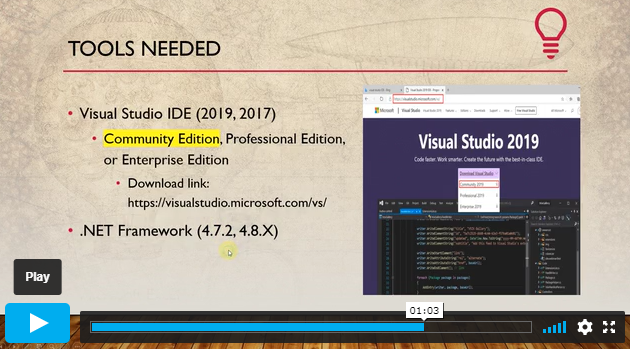
| Tools needed | 00:01:00 | ||
| Course Prerequisites | 00:04:00 | ||
| Section 02: Exporting AutoCAD Objects to Excel | |||
| Section Overview – Export AutoCAD Objects to Excel | 00:02:00 | ||
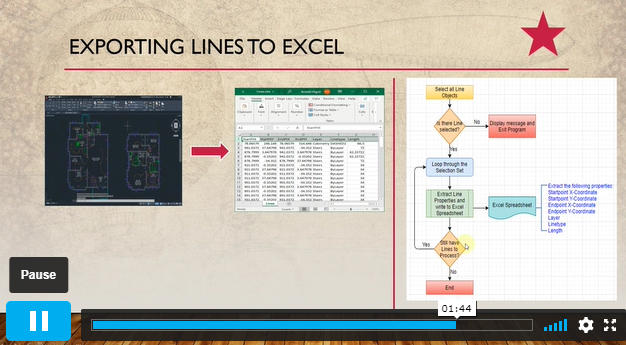
| Exporting Lines to Excel – Overview | 00:02:00 | ||
| Creating the VB.NET-Excel Project | 00:06:00 | ||
| Design of User Interface to Export Lines | 00:10:00 | ||
| Creating the Common Utility Class | 00:19:00 | ||
| Creating the ExportLines Method | 00:12:00 | ||
| Running and Testing ExportLines Method | 00:06:00 | ||
| Exporting MTexts to Excel – Overview | 00:02:00 | ||
| Creating the ExportMTexts Method | 00:11:00 | ||
| Export Polylines to Excel – Overview | 00:01:00 | ||
| Creating the ExportPolylines Method | 00:12:00 | ||
| Running and Testing ExportPoylines Method | 00:12:00 | ||
| Export Blocks (Without Attributes) to Excel – Overview | 00:01:00 | ||
| Creating the ExportBlocks Method | 00:12:00 | ||
| Creating Export Blocks UI and Running the Code | 00:06:00 | ||
| Exporting Blocks (With Attributes) to Excel – Overview | 00:02:00 | ||
| Creating the User Interface for exporting Blocks to Excel | 00:05:00 | ||
| Creation of BlocksForm UI | 00:04:00 | ||
| Coding the BlocksForm Load Event | 00:08:00 | ||
| Testing the BlocksForm UI | 00:03:00 | ||
| Coding the BlocksForm to populate the Listboxes | 00:15:00 | ||
| Coding the BlocksForm Export Button | 00:04:00 | ||
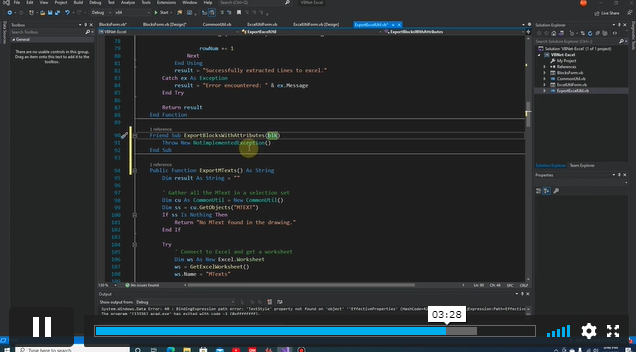
| Coding the ExportBlocksWithAttributes Method | 00:21:00 | ||
| Running and Testing ExportBlocksWithAttributes Method | 00:02:00 | ||
| Section 03: Importing Excel File into AutoCAD | |||
| Section Overview – Import Excel File into AutoCAD | 00:01:00 | ||
| Importing Lines from Excel File into AutoCAD – Overview | 00:01:00 | ||
| Creating ImportExcelUtil Class | 00:02:00 | ||
| Creating the ImportLines Method | 00:19:00 | ||
| Creating the UI for the ImportLines Method | 00:02:00 | ||
| Coding the ImportLines UI code behind. | 00:07:00 | ||
| Running and Testing ImportLines Method | 00:08:00 | ||
| Importing MTexts into AutoCAD – Overview | 00:01:00 | ||
| Creating the ImportMTexts Method | 00:11:00 | ||
| Creating ImportMTexts User Interface | 00:02:00 | ||
| Running and Testing ImportMTexts Method | 00:02:00 | ||
| Importing Polylines from Excel File into AutoCAD – Overview | 00:01:00 | ||
| Creating the ImportPolylines Method | 00:14:00 | ||
| Creating ImportPolylines User Interface | 00:02:00 | ||
| Running and Testing ImportPolylines Method | 00:03:00 | ||
| Importing Blocks (without Attributes) from Excel File into AutoCAD – Overview | 00:01:00 | ||
| Creating the ImportBlocks Method | 00:09:00 | ||
| Creating the ImportBlocks User Interface | 00:02:00 | ||
| Running and Testing ImportBlocks Method | 00:03:00 | ||
| Importing Blocks (with Attirubtes) from Excel File into AutoCAD – Overview | 00:02:00 | ||
| Creating the ImportBlocksWithAttributes Method | 00:25:00 | ||
| Creating the UI for ImportBlocksWithAttributes Method | 00:04:00 | ||
| Running and Testing ImportBlocksWithAttributes Method | 00:03:00 | ||
| Section 04: Exporting AutoCAD Objects to a File | |||
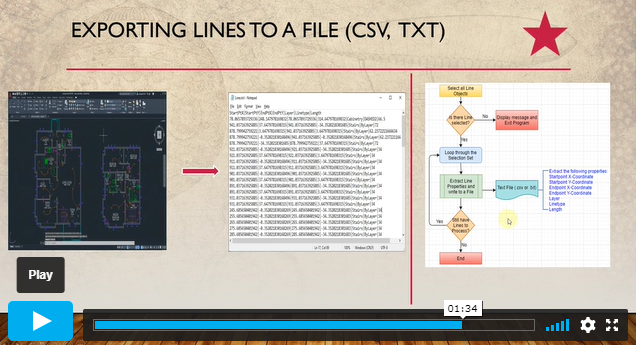
| Exporting Lines to a File – Overview | 00:02:00 | ||
| Creating the ExportToFile Utility Class | 00:04:00 | ||
| Creating ExportLinesToFile Method | 00:14:00 | ||
| Creating the UI for ExportLinesToFile Method | 00:08:00 | ||
| Running and Testing ExportLinesToFile Method | 00:02:00 | ||
| Exporting MTexts to File – Overview | 00:01:00 | ||
| Creating the MTextToFile Method | 00:06:00 | ||
| Creating the UI for the ExportMTextToFile Method | 00:01:00 | ||
| Running and Testing ExportMTextToFile Method. | 00:08:00 | ||
| Exporting Polylines to File – Overview | 00:02:00 | ||
| Creating ExportPolylinesToFile Method | 00:11:00 | ||
| Exporting Polylines to File – User Interface | 00:01:00 | ||
| Running and Testing ExportPolylinesToFile Method | 00:02:00 | ||
| Exporting Blocks (without Attributes) to File – Overview | 00:02:00 | ||
| Creating the ExportBlocksToFile Method | 00:10:00 | ||
| Creating ExportBlocksToFile User Interface | 00:02:00 | ||
| Running and Testing ExportBlocksToFile Method | 00:02:00 | ||
| Exporting Blocks (With Attributes) to a File – Overview | 00:02:00 | ||
| Creating the EXportBlocksWithAttributesToFile Method | 00:19:00 | ||
| Creating the UI for ExportBlocksWithAttributesToFile Method | 00:06:00 | ||
| Coding the BlocksForm for ExportBlocksWithAttributeToFile Method | 00:04:00 | ||
| Running and Testing ExportBlocksWithAttributesToFile Method | 00:03:00 | ||
| Section 05: Importing Text File into AutoCAD | |||
| Importing Text File into AutoCAD – Overview | 00:01:00 | ||
| Importing Lines from a Text File into AutoCAD – Overview | 00:02:00 | ||
| Creating the ImportFileUtil Class | 00:01:00 | ||
| Creating the ImportLinesMethod | 00:17:00 | ||
| Creation of ImportLines User Interface | 00:03:00 | ||
| Coding the ImportLines UI button | 00:05:00 | ||
| Running and Testing the ImportLines Method | 00:04:00 | ||
| Importing MTexts from Text File into AutoCAD – Overview | 00:02:00 | ||
| Creating the ImportMTexts Method | 00:09:00 | ||
| Creating the TextStyle Manipulation Code | 00:02:00 | ||
| Creating the UI for the ImportMTexts Method | 00:01:00 | ||
| Running and Testing the ImportMTexts Method | 00:04:00 | ||
| Importing Polylines from a Text File into AutoCAD – Overview | 00:02:00 | ||
| Creating the ImportPolylines Method | 00:18:00 | ||
| Creating the ImportPolylines UI | 00:02:00 | ||
| Running and Testing ImportPolylines (from a File) Method | 00:02:00 | ||
| Importing BLocks (without Attributes) from a Text File into AutoCAD – Overview | 00:02:00 | ||
| Creating the ImportBlocks (without Attributes) Method | 00:15:00 | ||
| Creating the ImportBlocks UI | 00:05:00 | ||
| Running and Testing ImportBlocks (without Attributes) Method | 00:04:00 | ||
| Importing Blocks (with Attributes) from a Text File into AutoCAD – Overview | 00:02:00 | ||
| Creating the ImportBlocksWithAttributes from a File Method | 00:23:00 | ||
| Creating the ImportBlocksWithAttributes (from a File) UI (Part 1) | 00:06:00 | ||
| Creating the ImportBlocksWithAttributes (from a File) UI (Part 2) | 00:04:00 | ||
| Running and Testing ImportBlocksWithAttributes (from a File) Method | 00:03:00 | ||
| Section 06: Conclusion | |||
| Conclusion | 00:01:00 | ||
Save Up To 95% -
This course includes:
COPYRIGHT © 2021 Institute of Mental Health